Purpose
In this section, you define the material properties and link them to the geometry. Without a correct assignment, the solver cannot execute the simulation.
 Access: Access this window by clicking the Polymers icon in the main toolbar or go to Data -> Plastic Part Data -> Polymers.
Pre-loaded Polymer Types
The software includes 9 default polymer types commonly used in rotational moulding, plus a User Material with empty properties for custom definitions:
- MDPE Medium-Density Polyethylene
- LDPE Low-Density Polyethylene
- HDPE High-Density Polyethylene
- LLDPE Linear Low-Density Polyethylene
- XLPE Cross-Linked Polyethylene
- PP Polypropylene
- NY Polyamide PA12 / Nylon
- EVA Ethylene Vinyl Acetate
- PC Polycarbonate
Material Management and Editing
- Naming: You can edit the "Name" field to identify your specific material (e.g., "PEAD - Supplier X"), but the base polymer type selection cannot be changed.
- Editing Properties: All properties in the three tabs are editable. You should adjust them to match your material's technical Data Sheet (TDS).
- Restoring Values: Use the Restore Values button to revert to defaults before saving. Once changes are saved, automatic restoration is not possible; values must be re-entered manually.
Properties Breakdown
The properties are organized into three tabs. Ensure these values match your polymer's documentation:
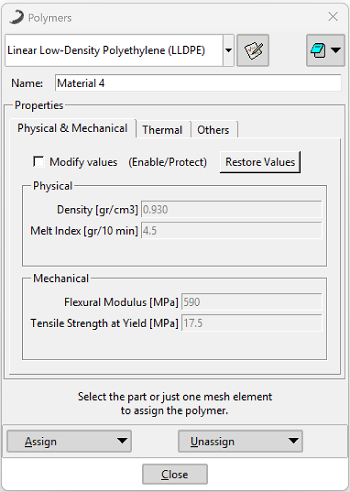 Properties: Density, Melt Index, Flexural Modulus, Tensile Strength at Yield.
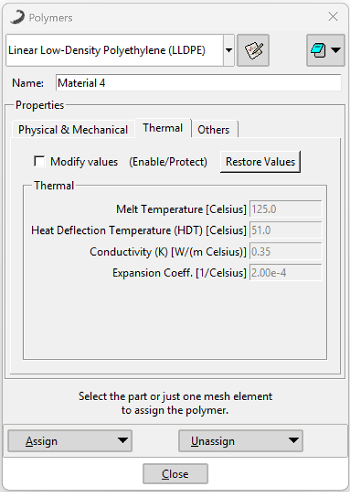 Properties: Melt Temperature, HDT, Conductivity (K), Expansion Coefficient.
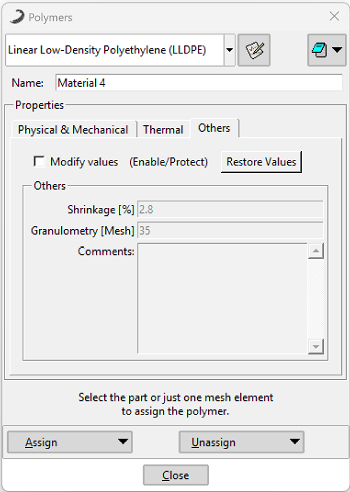 Properties: Shrinkage, Granulometry (Mesh), and Comments.
Note: Beyond these visible properties, the program internally utilizes viscosity and phase-change curves specific to each polymer type to ensure physical calculation rigor.
Assignment Methods (Assign / Unassign)
Configuring the material is only the first part; it must be assigned to the part or mesh. The method depends on your View Mode:
- Click Assign.
- Click on the part in the main workspace. The material is assigned to the entire volume.
- If different materials are assigned sequentially, the last one assigned will prevail.
- Click Assign.
- Select at least one mesh element. This assigns the material to the entire meshed body.
- If multiple materials are assigned to the same mesh body, the one linked to the lowest Element ID will prevail.
Verification: Check the Data Tree. When the Polymers item shows a green checkmark, the assigned material name will appear next to it.
Unassigning: Use the Unassign button. Select the part (in Part Mode) or the mesh (in Mesh Mode) to remove the current assignment.