Purpose
Once the volume mesh has been generated and all the rotomoulding process parameters have been entered, the simulation can be started. This stage integrates all physical and thermal information to resolve the thermodynamics and movement of the powder material inside the mould and how it adheres, melts, and solidifies.
 Access: Click the Simulate icon in the main toolbar or navigate to Calculate -> Simulate.
1. Monitoring and the Log File
During execution, the user can follow the progress through the progress bar window and, fundamentally, through the Log file. This file allows you to:
- Check the Pre-process: An initial report summarizing all entered parameters and the project summary.
- Analyze Compatibility: Confirm that the relationship between the mesh and the Project Mode is appropriate.
- Real-time Monitoring: Observe the simulation progress and any warning messages that may arise without interrupting the calculation.
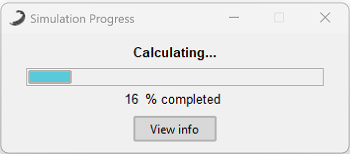 Figure 1: Simulation progress bar window.
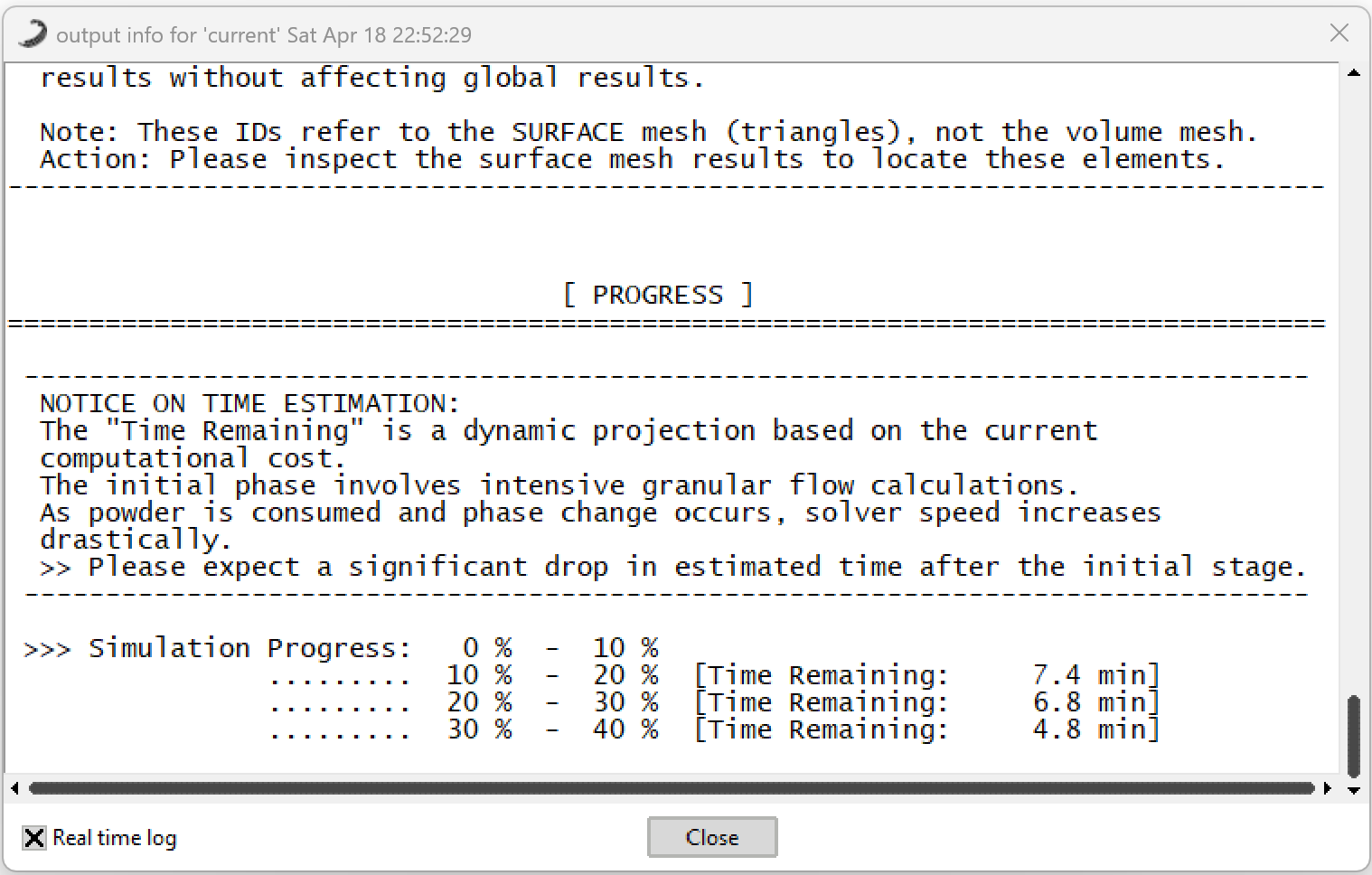 Figure 2: Simulation monitoring and status.
At the end of the simulation, the Log automatically generates a final summary that includes the maximum and minimum values of the most decisive results and the PIAT (Peak Internal Air Temperature) reached.
2. Process Control
The simulation process offers flexibility during execution:
- Window Management: If the progress bar or simulation windows are accidentally closed, the calculation does not stop; they can be reopened at any time without affecting data integrity.
- Aborting the Calculation: If you wish to stop the simulation before it finishes, use the option: Calculate -> Cancel process.